<link rel="canonical">
Injected canonicals
JavaScript changed or added your canonical. Catch it before Google does.
<title>Blue Widgets</title>
<link rel="canonical" href="/widgets?page=2">
</head>
See what the server sent, what the browser built, and what changed in between. Quickly debug SEO and dev issues.
Join 38,004 other SEOs and devs
38,004 installs
on the Chrome Web Store

“Ever found a tool you didn't want to share with others? View Rendered Source is that tool.”
Featured in







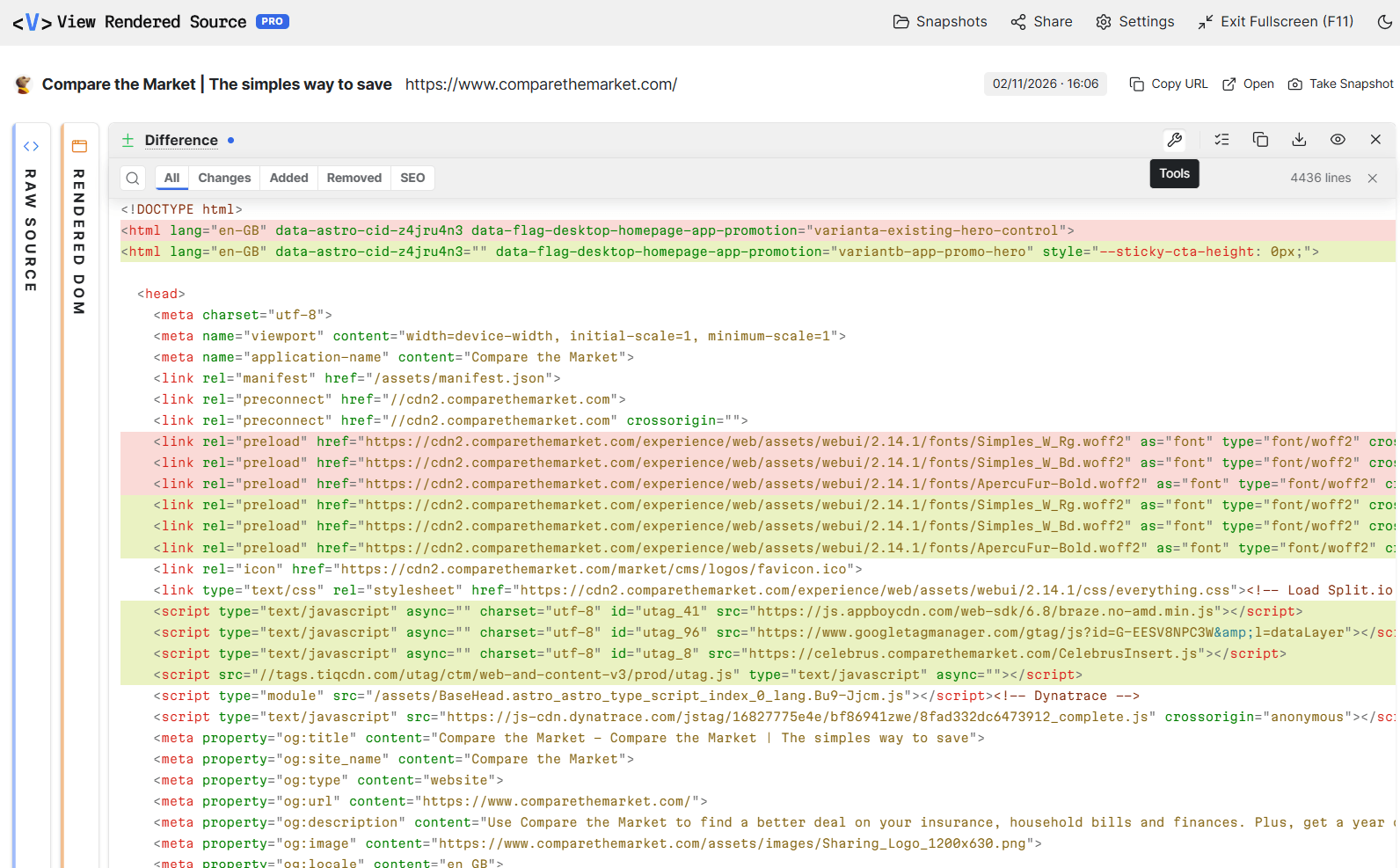
After the HTML arrives, JavaScript runs. It changes some tags, adds new ones and removes others. The page you're looking at is not the page in View Source. View Rendered Source shows the raw source, the rendered DOM, and the difference between them.
Debug tricky on-page SEO issues and hydration problems. Check your pages are visible to AI tools like ChatGPT.
 View Rendered Source Alt+U
Install from the Chrome Web Store
Add to ChromeOn the page you want to audit, launch with the toolbar, right-click, or Alt+U
Raw Source, Rendered DOM, and Difference open side by side.
In the Difference panel, see what was added, removed or changed. Filter by important SEO elements.
Review key page elements together in one table and see where Raw and Rendered disagree.
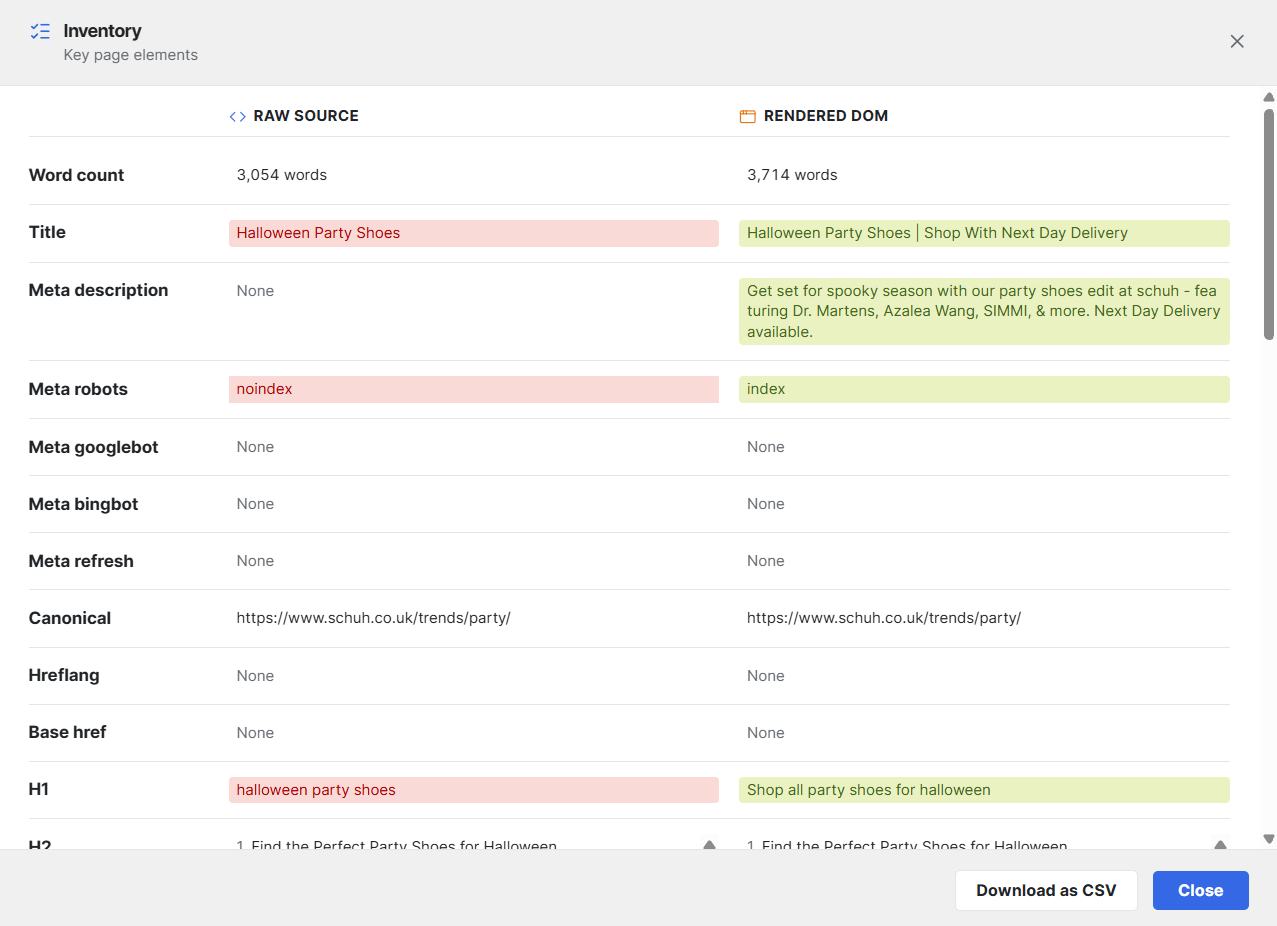
JavaScript can hide, delay or break your titles, canonicals, headings and structured data. Turn on the SEO filter in the Difference panel to see only the tags search engines care about, and exactly how they changed.
Quickly filter in the Difference panel to show only changes that matter for SEO. See if JavaScript changes, removes, or breaks them.
Or filter by All, Changes, Added or Removed. Click a filter to try it.
<link rel="canonical">
JavaScript changed or added your canonical. Catch it before Google does.
<title> <meta>
The title in the raw HTML isn't the one users and crawlers end up with. Descriptions and robots tags can change the same way.
</head>
An <iframe> pixel closed the head early. Title, canonical and robots fell into the body.
application/ld+json
See schema that only exists after rendering, or disappears.
<a href> <h1>
Links that exist only in the rendered DOM. A second H1 that appears after hydration.
<script src>
Tag managers, chat widgets and A/B tests inject their own markup. See exactly what they added to your page.
React, Vue, Next and Nuxt can render different HTML on the server and in the browser. The Difference panel shows you that mismatch, line by line. No console archaeology.
DevTools Elements shows the live DOM. It does not show the raw HTML the server sent, and it has no diff.
Server HTML says signed out. The browser says signed in.
“An essential bit of tech. I've been using it for years. Great stuff!”
 Crystal CarterHead of AI Search & SEO Communications at Wix
“This has been super useful on a lot of occasions. Thanks for making it!”
 Glen AllsoppHead of Marketing Strategy & Research at Ahrefs / Detailed.com founder
“Not sure how I did SEO or QA without this. I literally use it almost every time I look at the source code of a page now.”
 Rob WoodsSenior Director, SEO at EssilorLuxottica
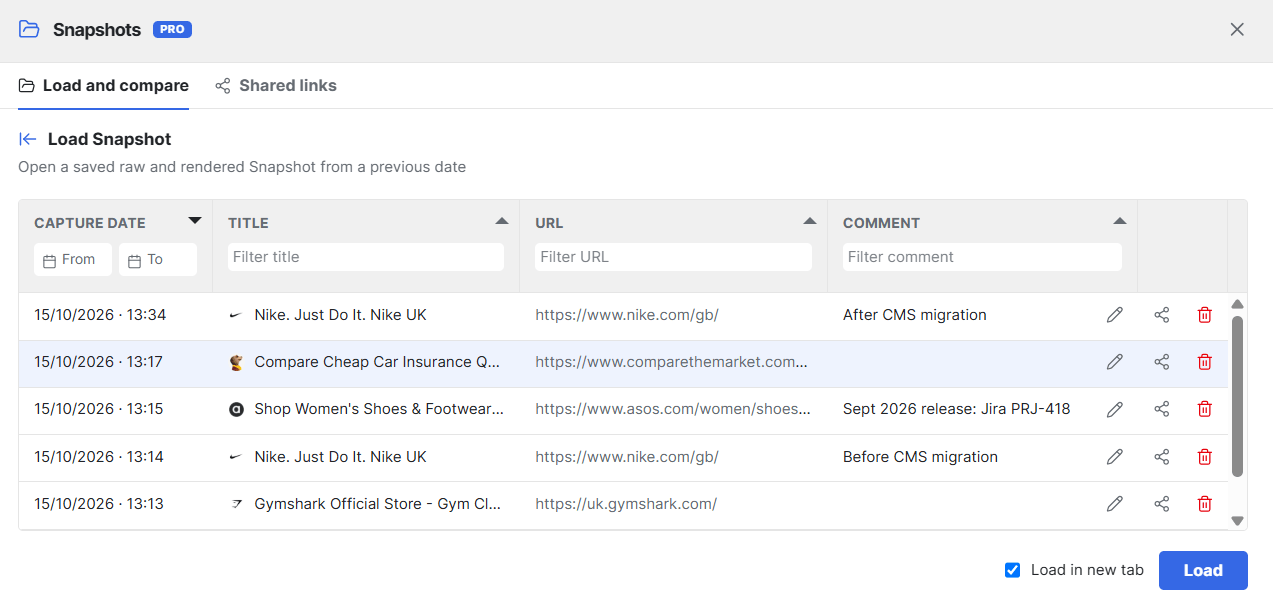
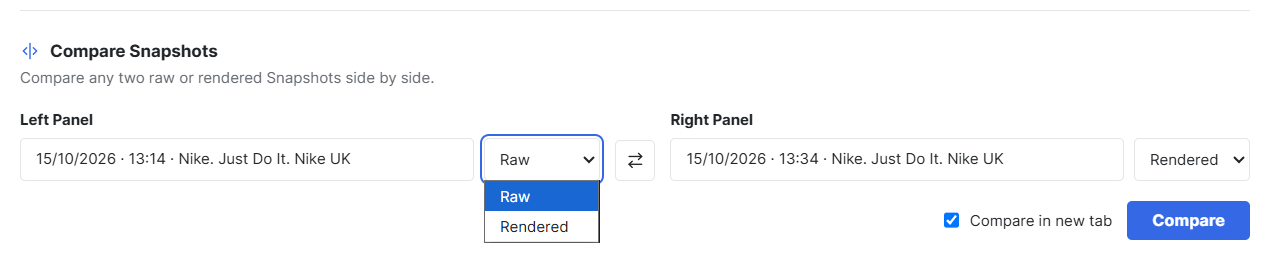
Migrating, redesigning or shipping to production? Snapshot the page before, compare after, and share a link with your team or client.
Save the raw, rendered and diffed source to your account, with capture date and an optional private note.
Browse, filter by date, title, URL or note, and reopen any Snapshot whenever you need it.
Diff two Snapshots across time, before and after a migration, or across environments like staging and production.
Anyone can open it, no extension needed. Send it to a client or your team.
$0
Free forever. No account needed.
Add to Chrome, it's free$10 per license per month, billed annually ($120/year)
Same extension. Activate with a license key in Settings.
7 days free, then $120/year. Cancel anytime. Each license covers one browser.
Everything in Free, plus:
4 or more licenses save 5%. 11 or more save 10%.
Still have questions? Email [email protected]
It shows you two versions of a page side by side: the Raw Source, which is the HTML the server sends, and the Rendered DOM, which is the page after JavaScript has run. It then highlights the differences between them, so you can see what JavaScript added, removed or changed. SEOs use it to check what search engines and AI crawlers can see. Developers use it to debug hydration mismatches, check what a framework renders on the server, or find what a third-party script injected.
They show the same HTML, but Raw Source is formatted and syntax highlighted, so it's easier to read.
Click the toolbar button, use the right-click menu, or press Alt+U.
As a general rule, if it's in the Raw Source, all crawlers see it. If it's only in the Rendered DOM, only Google sees it, and only after it renders the page. Rendering lags behind crawling, sometimes significantly.
Use Raw Source. Most AI crawlers don't run JavaScript because it's slow and expensive to render, so they only see the HTML the server sends.
Yes, with Pro. Take a Snapshot of the page on each site, then compare the two Snapshots later to see what's different.
No. Anyone with the link can open it in their browser. They don't need the extension or an account.
Yes. If it conflicts with another extension, change it at chrome://extensions/shortcuts.
In the free version everything stays in your browser. With Pro, if you Take a Snapshot the raw and rendered sources are saved to your account. Share links you create are public but unguessable URLs, not indexable by search engines and revocable at any time.
Elements shows the live DOM. It does not show the raw HTML the server sent, and it has no diff. To compare the two in DevTools you copy both into a diff tool and spot what's important yourself.
One license covers one browser. Activate with your code in the extension Settings. Pro lets you take Snapshots, compare them later and create share links. Buy 4+ licenses for your team and get 5% off, and buy 11+ for 10% off. First 7 days are free.
Email [email protected] within 14 days of your first payment and we'll refund you in full. After that, if you cancel, Pro stays active until the end of the period you paid for and doesn't renew. We don't refund the unused part of a period.
Join 38,004 SEOs and developers.